Pikmin Wiki by 101Leafy
Website and data research by 101Leafy.
Home › Hey! Pikmin › Electronic manual

Electronic manual

The electronic manual on the Hey! Pikmin Game Card, page by page, with the manual's own pictures.

Important Information

Please read this manual carefully before using the software. If the software will be used by children, the manual should be read and explained to them by an adult. Also, before using this software, please select in the HOME Menu and carefully review content in "Health and Safety Information." It contains important information that will help you enjoy this software. You should also thoroughly read your Operations Manual, including the "Health and Safety Information" section, before using this software. Please note that except where otherwise stated, "Nintendo 3DS™" refers to all devices in the Nintendo 3DS family, including the New Nintendo 3DS, New Nintendo 3DS XL, Nintendo 3DS, Nintendo 3DS XL, and Nintendo 2DS™.

CAUTION - STYLUS USE

To avoid fatigue and discomfort when using the stylus, do not grip it tightly or press it hard against the screen. Keep your fingers, hand, wrist, and arm relaxed. Long, steady, gentle strokes work just as well as many short, hard strokes.

Important Information

Your Nintendo 3DS system and this software are not designed for use with any unauthorized device or unlicensed accessory. Such use may be illegal, voids any warranty, and is a breach of your obligations under the User Agreement. Further, such use may lead to injury to yourself or others and may cause performance issues and/or damage to your Nintendo 3DS system and related services. Nintendo (as well as any Nintendo licensee or distributor) is not responsible for any damage or loss caused by the use of such device or unlicensed accessory. Except as authorized, copying of any Nintendo software is illegal and is strictly prohibited by domestic and international intellectual property laws. "Back-up" or "archival" copies are not authorized. Nintendo respects the intellectual property of others, and we ask Nintendo 3DS software Content Providers to do the same. In accordance with the Digital Millennium Copyright Act in the US, the Electronic Commerce Directive in the EU, and other applicable law, we have adopted a policy of removing, in appropriate circumstances and at our sole discretion, any Nintendo 3DS software that appears to infringe anyone else's intellectual property. If you believe your intellectual property rights are being infringed, please visit www.nintendo.com/ippolicy to view the full policy and understand your rights.

©2017 Nintendo

Trademarks are property of their respective owners. Nintendo 3DS is a trademark of Nintendo.

CTR-P-BRCE-00
Basic Information

amiibo

amiibo

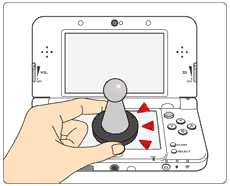
This software supports . You can use compatible amiibo™ accessories by touching them to the lower screen of your New Nintendo 3DS or New Nintendo 3DS XL system.

Using near-field communication (NFC), amiibo can connect to compatible software to open brand-new ways to interact with your favorite Nintendo games. For more information, please visit Nintendo's official website at www.nintendo.com/amiibo.

  • In order to create new game data on an amiibo that already has data saved on it from another game, you must first delete the existing game data. To delete your game data, open on the HOME Menu and then reset the data under amiibo Settings.
  • Data stored on amiibo can be read by multiple compatible games.
  • If the data on an amiibo is corrupted and can't be restored, open on the HOME Menu and then reset the data under amiibo Settings.
Using amiibo with a Nintendo 3DS, Nintendo 3DS XL, or Nintendo 2DS system requires the Nintendo 3DS NFC Reader/Writer accessory.

Precaution about amiibo

  • Just a light touch on the lower screen is enough for the system to detect your amiibo. Do not press the amiibo into the screen or forcefully drag it across the screen.

Internet Enhancements

This software allows the user to send play reports to Nintendo using the Internet. For more information, please review the page about SpotPass (page 11).

  • To connect to the Internet, you will need to set up the Internet Settings on your Nintendo 3DS system. Refer to your Operations Manual for information about connecting your system to the Internet.
Internet Enhancements

This software supports Nintendo Network.

Nintendo Network is the name of Nintendo’s network service that enables users to enjoy games and other content via the Internet.

Protecting Your Privacy

  • To protect your privacy, do not give out personal information, such as last name, phone number, birth date, age, school, e-mail, or home address when communicating with others.
  • Friend codes are a part of a system that allows you to play with people you know. If you exchange friend codes with strangers, there is a risk you could share information with people you do not know or exchange messages that contain offensive language. We therefore recommend that you do not give your friend codes to people you don't know.

Introduction

Starting the Game

The Hey! PIKMIN™ game is played using a combination of button and touch screen controls.

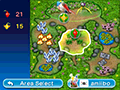
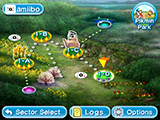
Area Select Screen

By touching an area, you are on your way to playing with Pikmin!

Starting the Game

1Area

You will receive a when you bring back treasure.

2Secret Spot

Here you can collect items such as pellets. Collecting pellets will spawn more Pikmin in the Park.

  • The icon is for amiibo specific Secret Spots (page 10).
3Sparklium Springs

You can collect a lot of Sparklium here.

  • After a certain length of time has passed, you'll be able to access Sparklium Springs again.

4Pikmin Park

Explore the Park (page 9).

5Sector Select

Takes you to the sector select screen.

6Logs

Here you can read about the treasures you find, the Pikmin you encounter, and the indigenous creatures you come across.

7Options

Here you can adjust various settings, including those for SpotPass™ (page 11).

About Saving Game Data

When you reach the exploration pod within an area (page 7), your game data will automatically be saved to the file you've selected.

Data Management

You can manage your saved game files by going to the Select File screen.

Copying Data

Touch Copy, and then select the save file you want to copy. Next, select where you would like to copy the file to.

Deleting Data

Select Delete, and then choose the file you want to delete.

  • Once data has been deleted, it cannot be recovered, so please be careful.

Data can be lost due to user action, such as repeatedly powering off and on the system or removing a Game Card or SD Card while saving. Data loss may also be caused by poor connectivity due to dirt or dust in the system's ports. Please be aware that in these cases data cannot be restored.

Exploring an Area

Screen Layout

Area Screen

Screen LayoutScreen Layout

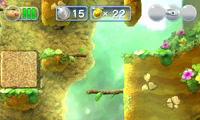
1Energy Gauge

This is Olimar's health gauge (page 7). When he receives damage, it will decrease.

2Number of Pikmin Collected

The number next to the icon will appear gray when any of your Pikmin are missing or separated from Olimar. After a certain period of time, it will begin flashing red.

When the icon begins flashing red...

Quickly try to find all of your Pikmin. After your Pikmin have been separated from Olimar for a certain period of time, they will start to disappear.

3Collected Sparklium Seeds

Sparklium Seeds are a source of Sparklium. are worth 1 Sparklium, while are worth 5 Sparklium.

4Collected Treasures

Here the treasures you've collected in the area will be displayed. Each treasure contains a great deal of Sparklium.

5Pikmin Icon

Different icons will appear to represent the different types of Pikmin you've collected along the way. These icons will appear when there are two or more types of Pikmin in your party. Touching them will switch the type of Pikmin that you throw.

6Jetpack Icon

Touch this icon to use your jetpack to fly for a certain period of time.

7Whistle Icon

Touch this icon to blow your whistle and summon Pikmin to you.

Pause Menu

You can access the pause menu by pressing START. Here you can select a different area to explore or use amiibo figures to call for Pikmin (page 10).
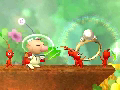
Exploring the Planet

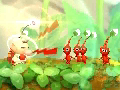
The mysterious creatures that inhabit this world are Pikmin. Team up with them to explore the planet.

Befriending Pikmin

Exploring the Planet

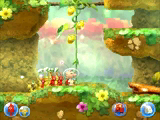
The Pikmin will begin to follow you once Captain Olimar touches them. Blow the whistle to summon Pikmin in the distance or reassemble your group of Pikmin.

The More the Merrier

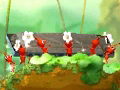
You can complete more difficult tasks with your Pikmin, such as carrying heavier objects.

Where'd They Go?

Sometimes Pikmin will be eaten by indigenous creatures or fall down holes, and your team will decrease. You can try going back to bushes and blowing your whistle again to summon more Pikmin.

Collecting Sparklium

Exploring the Planet

You can collect Sparklium by obtaining Sparklium Seeds or treasures.

Reaching the Exploration Pod

Exploring the Planet

When you reach the exploration pod at the end of an area, your expedition is complete.

Retrying an Area

You'll have to retry an area in certain circumstances, such as the following:

  • Olimar's Energy Gauge reaches zero.
  • Olimar gets crushed by a rock.

Refilling the Energy Gauge

Exploring the Planet

If you pick up a heart, it will refill the Energy Gauge. A small heart will fill one section of the gauge, and a large heart will refill the whole gauge.

Olimar and the Pikmin

Olimar's Abilities

Exploring an Area

Use Circle Pad or +Control Pad to move around the area. You can also use these controls to climb small ledges.

  • You can move around using ABXY as well.

Using the Whistle

Touch to blow the whistle and call nearby Pikmin to you.

Throwing Pikmin

When the Pikmin are within Olimar's reach, touch the place you want him to throw them.

Flying with the Jetpack

Tap to fly for a certain period of time.
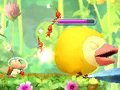
  • Pikmin will not follow you while you use the jetpack.

Viewing the Radar Map

Press L or R.

  • You can use the Radar Map once you obtain a certain amount of Sparklium.

Pikmin Abilities

Pikmin are naturally hard workers, and they'll be extremely helpful in all sorts of situations.

  • They can do the things listed below, and more!

Carrying Objects

Olimar and the Pikmin

The Pikmin you befriend will carry objects like Sparklium Seeds and treasures.

Fighting Indigenous Creatures

Olimar and the Pikmin

Throw Pikmin at indigenous creatures to attack them.

Different Colors, Different Powers

Pikmin will have different abilities based on their color. You can find out more information about specific types of Pikmin by visiting the Data Logs (page 4).

Even More Fun

Pikmin Park

When you finish an exploration trip, you can bring back the Pikmin you gathered and have them look for Sparklium in the Park for you.

Exploring the Park

Pikmin Park

Touch a Pikmin icon and then the area you want them to explore. They might find some nice things for you while they search!

Leveling up amiibo

Once you've collected a large group of Pikmin in the Park, tap to level up your Pikmin amiibo figures. (page 10)

amiibo

The following amiibo can be used with this game and will increase gameplay options:

Pikmin, Olimar

Call for Pikmin

While you're exploring, you can summon more Pikmin from the pause menu. If you level up your amiibo at the Park (page 9), the number of Pikmin you can summon will increase.

  • The Olimar amiibo figure cannot be leveled up.

How Often?

You can call extra Pikmin once per course. If you leave or retry the course, you'll be able to call Pikmin again.

amiibo Specific Secret Spots

You can unlock and play exclusive Secret Spots by visiting them and scanning amiibo (page 4).

Treasure amiibo

Your amiibo can appear as treasures in Secret Spots.

Scanning amiibo

To play Secret Spots or have amiibo appear as treasures, touch on the Area Select screen.

Other amiibo

The following are some of the other amiibo that can be used with Hey! PIKMIN. They can be used in Secret Spots, and they can appear as treasures.

  • Super Mario series
  • Splatoon series
  • Animal Crossing series (amiibo figures only)

Further Information

For details on compatible amiibo, please visit the Nintendo homepage. (http://www.nintendo.com/amiibo/)

Wireless Communication

SpotPass

Sending Play Data (SpotPass)

You can choose to enable the SpotPass feature to periodically connect to the Internet (if available) and share usage data with Nintendo. This will happen while the system is in Sleep Mode, and even while the software is not running. Data shared with Nintendo will be used in compliance with the latest Nintendo 3DS Service User Agreement and Privacy Policy.

  • An Internet connection is required.

Using SpotPass

You can enable or disable SpotPass from the Area Select screen by selecting Options and then SpotPass.

  • You can follow these steps to set SpotPass to Off at any time.

Troubleshooting

Support Information

Nintendo Customer Service SUPPORT.NINTENDO.COM USA/Canada: 1-800-255-3700 Latin America/Caribbean: (001) 425-558-7078